Features
Localization infrastructure for real codebases
Translate, generate i18n, and inject safely — even without existing localization.
✔ Works without i18n
✔ Reversible code injection
✔ Tested on large-scale projects
✔ Multi-layer scanning engine
Multi-Layer Scanning Engine
LocEngine analyzes source code using a layered detection architecture designed for real-world projects.
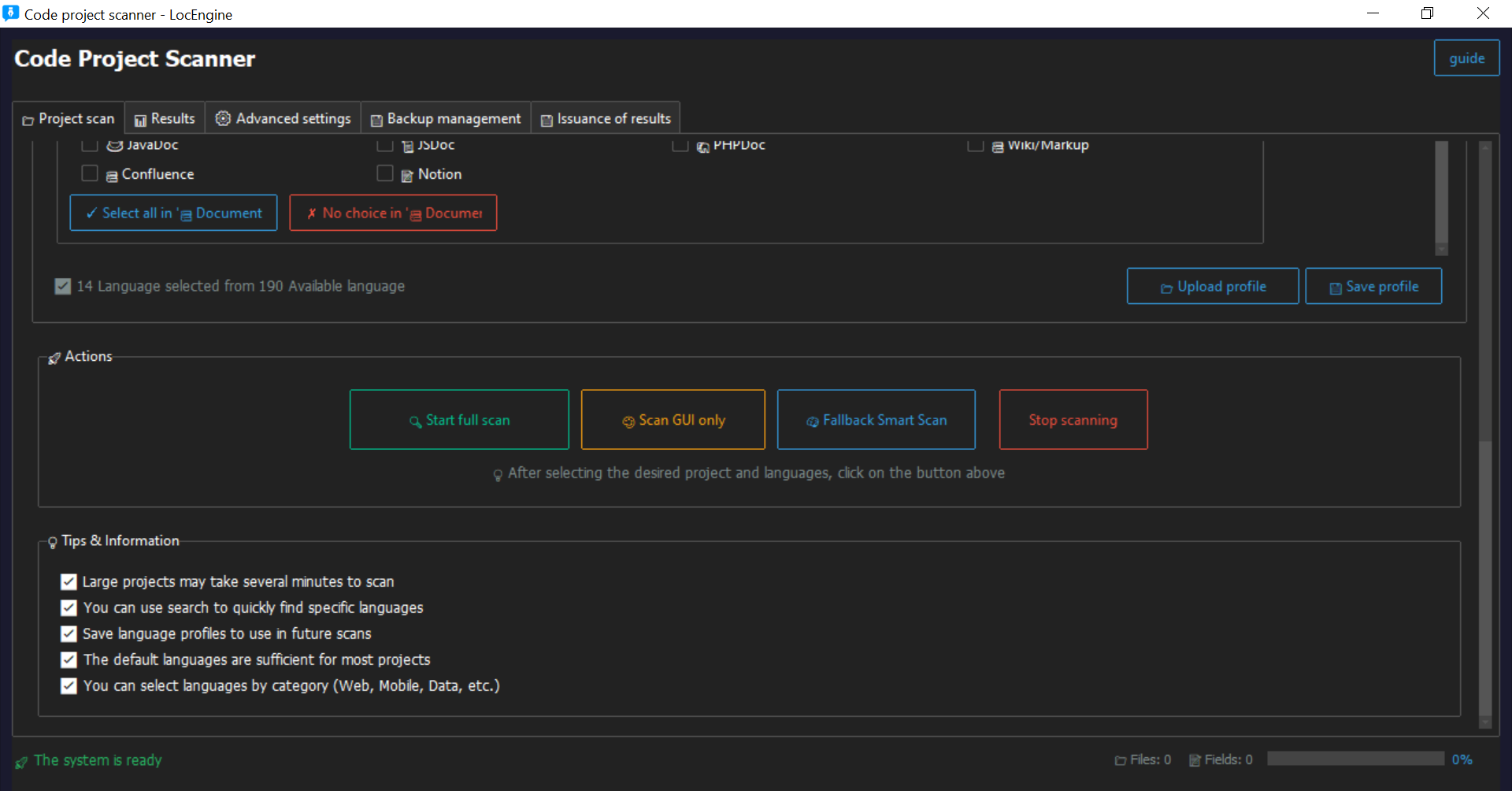
• Regex + AST-based analysis
• Full Scan for deep project coverage
• GUI Scan for UI-driven detection
• Fallback Scan for legacy structures
• Detects translatable content across code and interface layers
Works with both localized and non-localized projects.
Automatic i18n Structure Generation
Build a localization-ready architecture from raw source code.
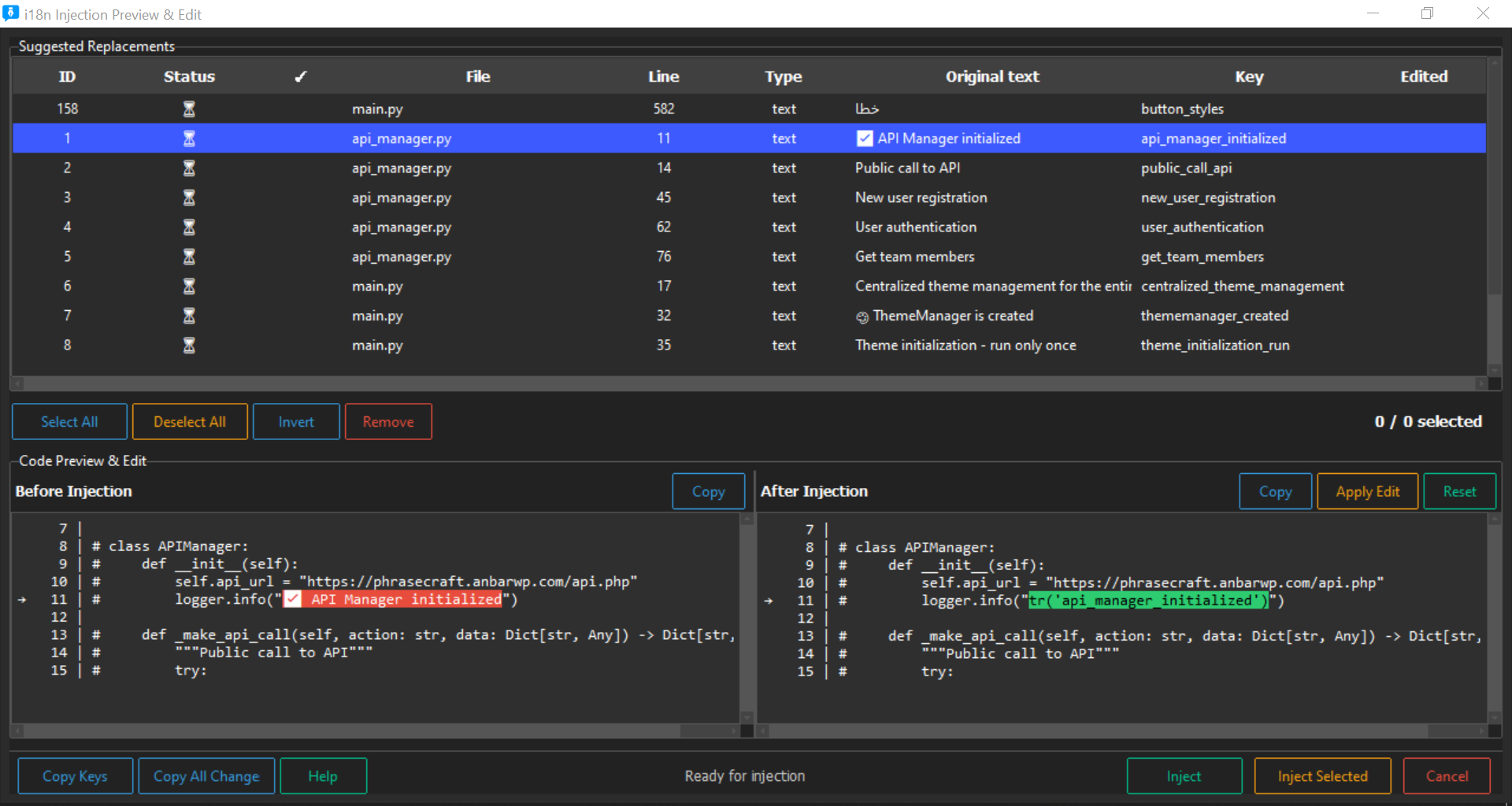
• Automatically generates translation keys
• Converts hardcoded strings into structured localization
• Creates maintainable i18n infrastructure
• Enables localization for legacy codebases
• No manual preparation required
Translate your project — even without i18n.
Safe & Reversible Translation Injection
Integrate translations directly into source code without risk.
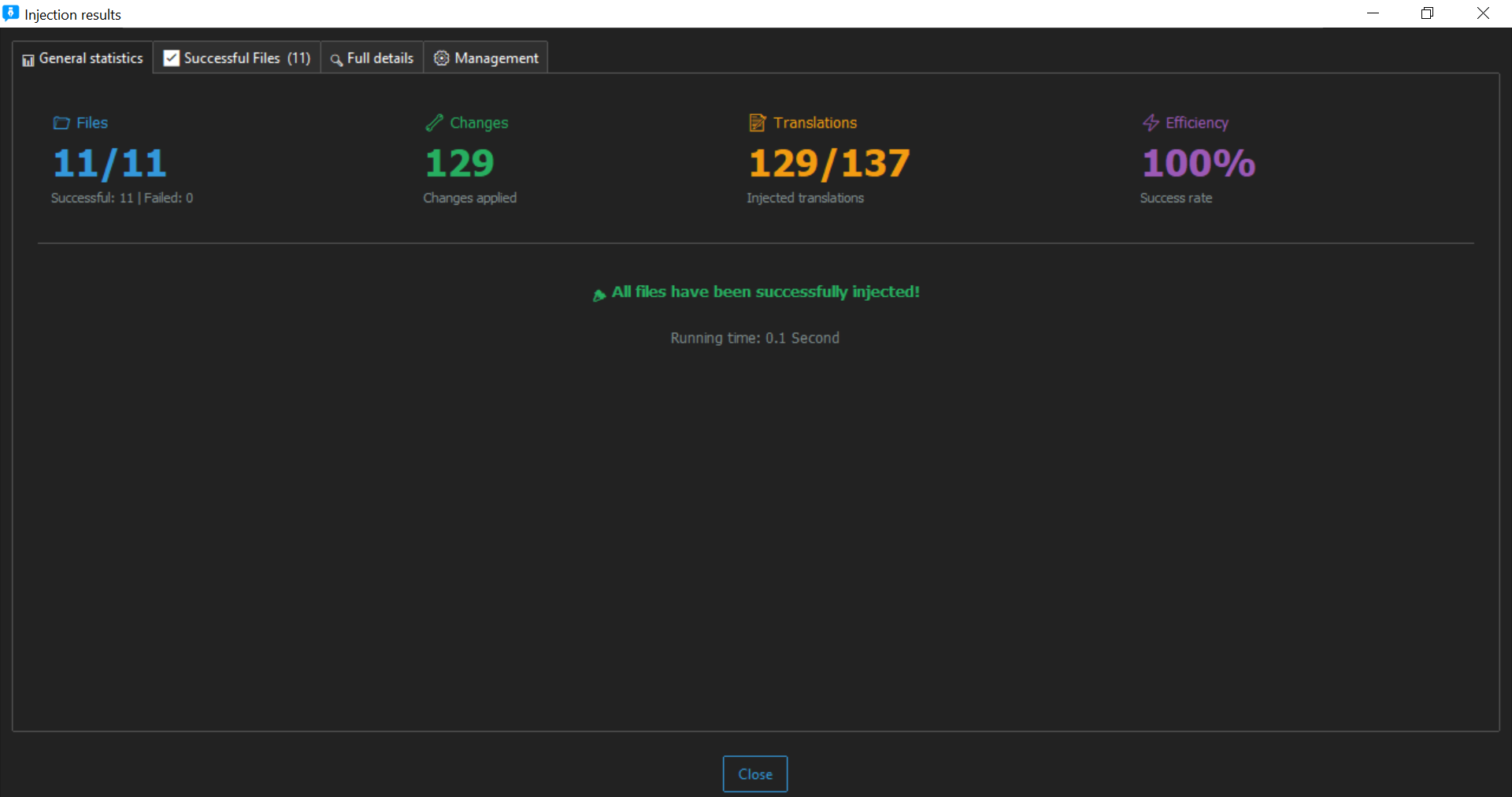
• Direct source injection
• Fully reversible process
• Automatic backup before modification
• Preserves original structure
• Designed for large-scale codebases
Localization that respects your code.
Built-in QA & Validation System
Prevent localization errors before they reach production.
Validation checks include:
• placeholders
• punctuation
• whitespace
• length constraints
• numeric values
• capitalization
• encoding compatibility
• RTL / LTR direction
• glossary enforcement
• cross-file consistency
Quality assurance built into the workflow.
Translation Pipeline
Flexible translation workflow for different project needs.
• One-click machine translation via Google Translate
• Architecture ready for DeepL and AI integrations
• Export to JSON, PO, CSV, TXT and more
• Manual editing supported
• Compatible with standard localization formats
Quality assurance built into the workflow.
Built for Large Projects
Engineered to handle real production codebases.
• Tested on projects with 2m+ strings
• Batch processing support
• Project-wide automation
• Multi-platform compatibility
• Supports 190+ code and resource formats
Safety Architecture
Your code stays protected at every step.
• Automatic full project backup
• Local file processing
• Controlled write operations
• Encoding-safe transformations
• Non-destructive workflow
WordPress Localization Module
Specialized automation for the WordPress ecosystem.
• Extracts strings from themes and plugins
• Generates PO / POT / MO files automatically
• Folder-based processing
• One-click translation workflow
🧠 Translation Cache & Memory
Never translate the same string twice. LocEngine intelligently caches translations to save time, reduce costs, and ensure consistency across your entire project.
Smart Translation Cache
Automatically stores every translated string for instant reuse. When the same text appears again, LocEngine delivers the cached translation instantly.
- ⚡ Instant delivery - No API calls needed
- 📦 Persistent storage - Cache survives restarts
- 🔄 Auto-deduplication - No duplicate work
- 📤 Export/Import - Share cache across projects
Translation Memory (Fuzzy Match)
Advanced fuzzy matching finds similar strings (90%+ similarity) and suggests translations even when not identical.
- 🎯 90%+ similarity matching - Catch near-duplicates
- 🧩 Context-aware - Suggestions based on usage
- 👥 Team shared memory - Consistent across team
- 📊 Version history - Track changes
Performance & Cost Savings
Reduce translation time by up to 70% while dramatically cutting API usage costs.
- ⏱️ 70% faster - Project turnaround
- 💰 Lower API costs - Fewer external calls
- 📈 Scalable - 1K to unlimited entries
- 🌐 Offline access - Work without internet
Cache Limits by Plan
| Plan | Translation Cache | Translation Memory | Team Sharing |
|---|---|---|---|
| Free | ❌ Not available | ❌ Not available | ❌ |
| Pro Basic | ✅ 10,000 entries | ❌ Not available | ❌ |
| Pro Standard | ✅ 15,000 entries | ✅ Basic fuzzy match | ✅ Up to 3 users |
| Pro Advanced | ✅ 20,000 entries | ✅ Advanced fuzzy match | ✅ Up to 10 users |
| Ultimate | ✅ 50,000+ entries | ✅ Enterprise-grade | ✅ Unlimited |
| Enterprise | ✅ Unlimited | ✅ Custom training | ✅ Unlimited |
Real-World Impact
"After implementing LocEngine's translation cache, we reduced our monthly API costs by 60% and cut project turnaround time from 3 days to just 1 day. The fuzzy matching caught 85% of repeated strings automatically."
— Enterprise Client, 2M+ strings project
How It Works
First Translation
String is translated via machine or manually. Result is automatically cached.
Cache Storage
Translation stored locally with metadata (context, project, language pair).
Smart Detection
When same/exact string appears, LocEngine checks cache first.
Instant Delivery
Translation delivered instantly with zero API cost or delay.
Ready to localize your codebase?
Download the Windows version and start translating today.
Powerful Features for Code Translation
Everything you need to manage multilingual projects efficiently
🔍 Smart Project Scanner
Multi-Platform Support
Scan Android (XML), iOS (Strings), Flutter (ARB), Web (JSON, YAML), and more
- ✅ Android XML files
- ✅ iOS Strings files
- ✅ Flutter ARB format
- ✅ JSON/YAML for web
- ✅ Custom format support
High-Speed Scanning
Scan thousands of files in seconds with optimized algorithms
- 🚀 Parallel processing
- 🚀 Incremental scanning
- 🚀 Real-time progress
- 🚀 Memory efficient
Smart Detection
Automatically detects string patterns, placeholders, and variables
- 🔤 Placeholder detection (%s, {0}, $var)
- 🔤 Plural rules
- 🔤 HTML tags
- 🔤 Special characters
🔐 License Management
Flexible Plans
Choose the plan that fits your needs
- 🆓 Free: Basic features
- 💎 BASIC: Small teams
- ⭐ PRO: Professional use
- 🏢 ENTERPRISE: Large organizations
Multiple Licenses
Manage multiple licenses from your account
- 📋 Switch between licenses
- 📊 License history
- ⏰ Expiry notifications
- 💾 Auto-save license
Easy Activation
Simple one-click activation process
- 📝 Copy/paste support
- ✅ Instant validation
- 🔄 Auto-restart
- 🔒 Secure storage
👥 Team Collaboration
Team Workspace
Collaborate with your team members
- 👥 Multiple users
- 📊 Shared projects
- 🔐 Role-based access
- 📈 Activity tracking
Project Management
Organize and manage multiple projects
- 📁 Private projects
- 🏷️ Project tags
- 📅 Version history
- 💾 Auto-backup
Export Options
Export in multiple formats
- 📄 JSON format
- 📄 CSV for Excel
- 📄 YAML format
- 📄 Custom templates
Compare Plans
| Feature | Free | BASIC | PRO | ENTERPRISE |
|---|---|---|---|---|
| Project Scanner | ✓ Basic | ✓ Advanced | ✓ Advanced | ✓ Advanced |
| Max Strings | 1,000 | 10,000 | 100,000 | Unlimited |
| Export Formats | JSON only | JSON, CSV | JSON, CSV, YAML | All + Custom |
| Team Members | 1 | 5 | 20 | Unlimited |
| Private Projects | 1 | 10 | 50 | Unlimited |
| Priority Support | ✗ | ✗ | ✓ | ✓ 24/7 |
LocEngine Documentation
🚀 Quick Start Guide
Step 1: Download and Install
Download the latest version from your account dashboard and run the installer.
Step 2: Activate License
After installation, launch the app and enter your license key.
- Click on "Activate License" button
- Paste your license key
- Click "Activate"
- The app will restart automatically

Step 3: Scan Your First Project
Select your project folder and start scanning.
- Click "Select Project"
- Choose your project directory
- Click "Start Scan"
- Review extracted strings
📘 Advanced Tutorials
🎥 Video Tutorials
Frequently Asked Questions
🔐 License & Activation
How do I activate my license?
After downloading LocEngine:
- Open the application
- Click on "Activate License" button
- Enter your license key (you can copy it from your account)
- Click "Activate" and wait for validation
- The app will restart automatically with full features
Can I use the same license on multiple computers?
It depends on your plan:
- Free: 1 computer only
- BASIC: 2 computers
- PRO: 5 computers
- ENTERPRISE: Unlimited computers within your organization
What happens when my license expires?
When your license expires:
- You'll see a warning in the app
- You can still access your existing projects
- New features and updates won't be available
- You can renew your license from your account dashboard
How do I switch between multiple licenses?
If you have multiple active licenses:
- Go to License section in the app
- Click on the dropdown menu showing your current license
- Select the license you want to use
- The app will automatically update with the selected license features
🛠️ Technical Issues
The app won't start after activation
Try these solutions:
- Make sure you have Python 3.8 or higher installed
- Run the app as administrator (Windows)
- Check if your antivirus is blocking the app
- Try reinstalling the application
- Contact support if the issue persists
Why do I see "HWID mismatch" error?
This error occurs when your license is bound to a different computer. This can happen if:
- You've changed your hardware (CPU, motherboard, etc.)
- You're trying to use the license on a different computer
- Your operating system was reinstalled
Solution: Contact support to reset your license for the new hardware.
The scanner is not detecting all strings
Common reasons and solutions:
- Wrong file format: Make sure you selected the correct project type
- Nested folders: Enable "Deep scan" option
- Custom syntax: Add custom patterns in settings
- File permissions: Run as administrator
💳 Billing & Plans
What payment methods do you accept?
We accept:
- 💳 Credit/Debit cards (Visa, MasterCard, American Express)
- 📱 PayPal
- 🏦 Bank transfer (for Enterprise plans)
- 💰 Cryptocurrency (upon request)
Can I upgrade or downgrade my plan?
Yes! You can change your plan at any time:
- Upgrade: Instant activation, you pay the difference
- Downgrade: Takes effect at next billing cycle
Go to your account dashboard → Subscription → Change Plan
Do you offer refunds?
Yes, we offer a 30-day money-back guarantee. If you're not satisfied with LocEngine, contact support within 30 days of purchase for a full refund.
👥 Team & Collaboration
How do I add team members?
To add team members to your workspace:
- Go to "Team" section in the app
- Click "Invite Member"
- Enter their email address
- Choose their role (Admin, Editor, Viewer)
- They'll receive an invitation email
Can I share projects with my team?
Absolutely! With PRO and ENTERPRISE plans, you can:
- Create shared project folders
- Assign tasks to team members
- Track changes and history
- Set permission levels per project
Still have questions?
Can't find what you're looking for? Our support team is here to help.
Contact Support →